This year for Christmas, my wife made each of us in our family a gingerbread house to decorate during the holidays: a great activity to do together and break up the otherwise endless cycle of eating and video games :). We decided to make a theme that we would all decorate to: "bright and colourful", fairly straight forward. I couldn't help myself and so I wanted to integrate in some electronics and colourful lights to really add to the brightness factor!
I put a spare Circuit Playground I had sitting around to good use, by programming a little rainbow light show to go with my house: the light show is activated by a digital microphone on the board by blowing gently into the window of the house. I would have had a Christmas tune playing on the board too, but unfortunately the speaker on my Circuit Playground isn't working.
It's that time of year again so time for a Christmassy sort of project to round out the year. In the past I've 3D printed lots of Christmas decorations, so I thought it was time to make a nice Christmas tree topper. Normally this would be a star, but my son has been playing lots of Super Mario Odyssey lately, and I wanted to make something he would think was cool, so I went with a Mario-style Power Moon from the game.
I wanted to add a bit of light and sound, so I started digging through spare Arduino boards to see what I could make work with battery power in a minimal footprint. I ended up using a Adafruit Gemma m0, as it's small, has a battery JST input, on/off switch and a single Dotstar three-colour LED mounted on the board already. All I needed to fit in with it was a small lipo battery and 8ohm speaker for sound and it was good to go.
I wanted the power moon to be able to change colours (as they appear in various colours in the game, depending on which kingdom you are in), so I 3D printed the moon using transparent filament and designed a little cavity inside the moon to house the electronics and light. The resulting effect with the LED on is that the filament catches the light and creates a nice glowing effect.
For music, I wanted to go just a little step beyond a series of single tone beeps, so I did a little research on how to get timer counters and interrupts going on the Gemma m0 (and other SAMD boards), mainly by studying the existing Arduino "tone" implementation for this chip. I ended up creating a modified set of tone functions that use both timer 4 and 5 to generate two pulse wave voices so I could play some very basic polyphonic music. There are three I/O pins on the Gemma and I wanted to keep one free as a switch to control the activation of lights and sound, hence just two sound channels.
For the electronics, I soldered the Gemma pins directly to each end of the speaker (via a pair of resistors) and wired up a vibration-activated switch between one of the digital inputs and ground, so that I could trigger light/sounds shows without having to put in a button, or open up the case. I fit a small lipo battery in between the Gemma and the speaker, so everything is together in a small disc-shaped package.
For music, I composed some two part tunes using Musescore and wrote a little python script to convert Musescore mscx files (XML formatted files that contain the music data in terms of the note pitches, timing and durations) into data embedded into a header file I could compile straight into the Arduino code. I then wrote a system in for pulling out the appropriate note data at the appropriate time to pass on to the modified tone code.
The moon is made up of two halves that need to be able to come apart (in order to switch it on/off and take the battery out for re-charging), so in order to have something that can open and close easy, I glued some small magnets to the inside of each side of the case that hold the moon together. Seems to work pretty well!
Here's a video of the moon in action: Merry Christmas!
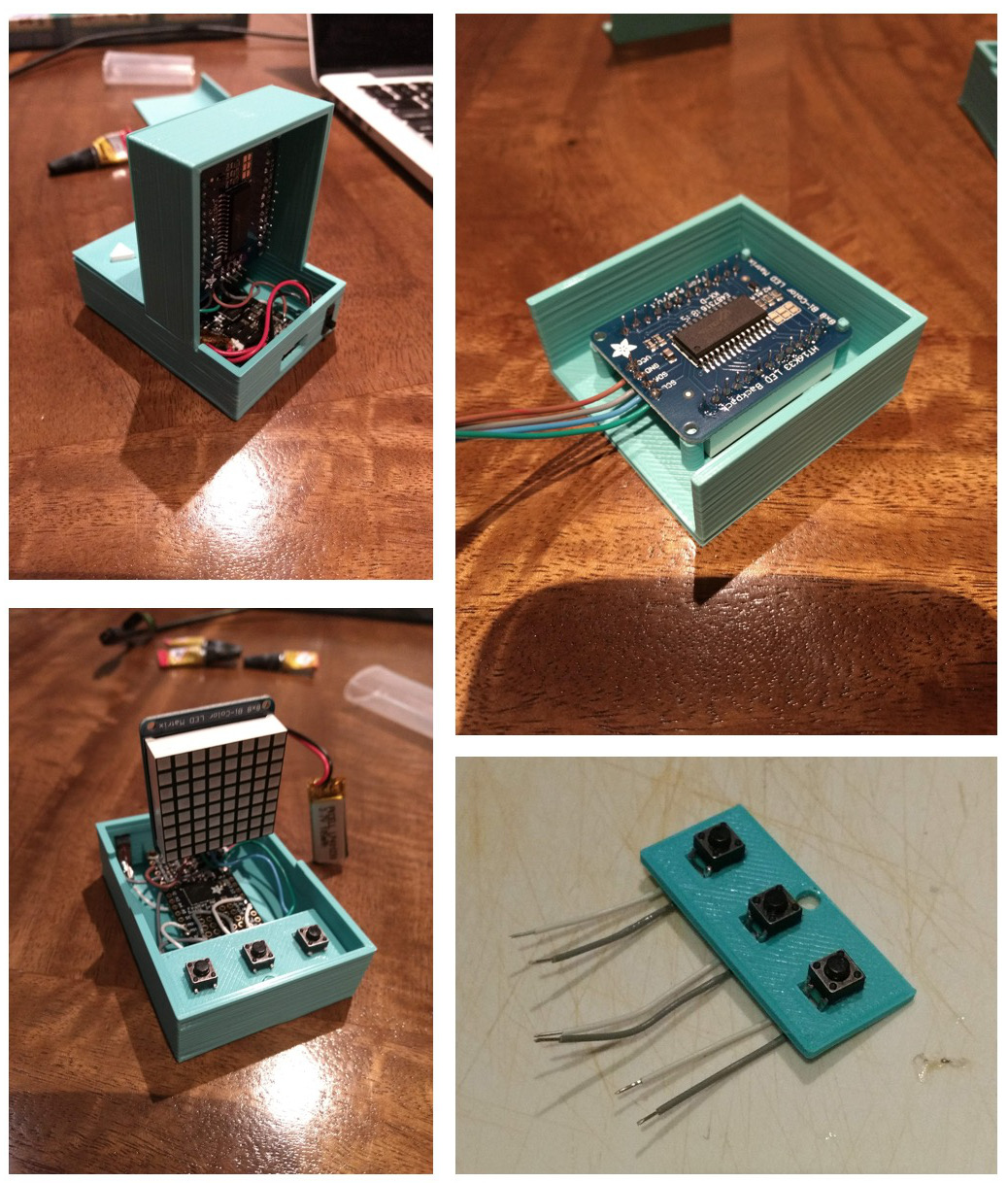
I've just finished a new electronics project: it's a mini electronic connect4 game, with a built-in computer opponent. It runs on an Adafruit M0 Featherboard and uses an bi-colour 8x8 LED matrix display as the gameboard. There are three buttons for controlling the player's moves in the game. The device has a 3D printed case, is portable, battery powered and USB-rechargeable (via the featherboard). The game functionality is programmed in Arduino and features an AI opponent, with a moderate level of difficulty.
I had the matrix display sitting around for a while, and I had been trying to think of a cool project to use it for. When a group of colleagues at work started up a connect4 python bot programming challenge, I got inspired to try and implement a bot into the lower-powered processing capabilities of a smaller micro-processor, so I thought this would be a great use for the display. I started off by testing out the display: I soldered on the backpack to the LED matrix and wires onto the power, ground and I2C lines on the backpack so I could connect it to a breadboard. I hadn't soldered on the headers for my featherboard M0, and I had a Gemma M0 sitting around so I connected it up to the backpack using some jumper leads and alligator clips to test it. I used the 3.3V output from the Gemma: seems to drive the matrix with no problems. I downloaded the Adafruit libraries to drive the LED backpack and the Adafruit GFX library, which provides some basic functionality for drawing primitive geometry and rendering text to the display: I ran one of the example scripts for the backpack and all was working well.
I started developing the code for a connect4 game and an AI to play against. The AI uses a Monte Carlo Tree Search algorithm for evaluating the next best move based on simulating games to approximate win/loss statistics. This seemed like the quickest and easiest approach to develop, seemed to require less memory that a Minimax approach, and I'm assuming provides a little bit of random variation in the AI's play, such that games against a human would be a bit more interesting.
Played around a bit with the AI to try and get it to prioritise early wins/avoiding early losses: cost for loss = 42-n_moves, cost for win = 42-n_moves, then score = win_cost - loss_cost: works OK, but doesn't correctly prioritise avoiding when the player will definitely win on the next turn: so I had to hard code a few initial checks in so the AI first looks for instant win moves, then for moves which block the player winning on the next move, then Monte Carlo.
Once I was happy with the code, I started working on the design of the physical device and casing. I started off with the idea of having a custom-built rotary input wheel on the top of the game that would allow the player to turn the wheel to move the location of the piece to drop, then click the wheel to drop the piece. I bought some mini trimpots to use as input with custom-designed 3D printed cog to interface with trimpot. After experimenting with a couple of 3D prints for the knob, I ended up dropping this idea as the trimpots I could find all had so much friction, that they were almost impossible to turn using a single finger without having to have a giant sized knob to achieve the appropriate torque. I ended up instead going with a more traditional arcade button layout with one button to move the cursor position left, one right and a third button to place the token.
I designed the 3D printed case to look a little bit like a connect4 board, except that it's quite fat, which is needed to fit everything inside (particularly the matrix display, which is quite thick when the breakout board is soldered on). It printed from multiple sections that are then glued together.
For the electronics, I began by laying out in the case where the components would fit and how I would wire everything together. The case is quite small, so I had to plan out the layout of wires to ensure it did't get too messy on the inside. I wired all the electronics together first, separate from the case, and tested everything was working, before moving on to connecting and gluing on the case.
The tabs I had designed to hold the micro to the case turned out to be a touch too big for the mounting holes on the board, so ended up having to snap them off and superglue the board to the case. The other sections of the case all fit together nicely, and I ended up using superglue to connect all the separate sections of the case together. The final product is fairly neat looking and compact: it even does look a little bit like a mini connect4 board!
I really enjoyed working on this project: it was fun to design a case that had a couple if different sections and was a little less "flat" than some of the previous 3D printed electronics projects I've worked on before.
This is part two (see part one) of a post on a custom-built Arduino-based synthesizer and keyboard called “Pentasynth”. Pentasynth uses a keyboard based on a five note pentatonic scale, so it’s easy to play for people with limited background in music (such as young kids) and encourages experimentation and improvisation. Pentasynth creates a user-selectable accompaniment including different drum patterns, bass lines and chord progressions and allows the user to play a pentatonic melody line over the top. Under the hood, Pentasynth runs on an Adafruit Metro Mini (using the same ATmega328 microcontroller as the Arduino Uno) and generates three channel audio (two square-wave tones and one pseudo-random noise drum beat), which is passed through and onboard amplifier and speaker, while simultaneously passing all outputs as MIDI messages via the USB for either a lo-fi or hi-fi audio experience. Pentasynth has controls for volume, tempo and selection of different accompaniment patterns. The keys and case components are 3D printed, with the main case panelling carved from clear acrylic using Carvey. Custom PCBs containing switches for detection of key presses were also carved on Carvey.
In the previous post, I discussed the hardware development of the keyboard including 3D printed keys and CNCed case and key switch PCBs, and the use of a wavetable synth for audio. I wasn't that happy with the audio quality from the wavetable synth, so I re-wrote my own system using hardware PWM square-waves for audio, with a bit of re-jigging to add MIDI output. I'll also discuss the electronics in a bit more details and the code running on the Arduino.
The ATmega328 has three hardware timers that can each be used to drive interrupt routines or run a hardware Pulse Width Modulation (PWM) signal. Since I wanted to keep the main program on the microcontroller free to managing key and control inputs and running an accompaniment system, the hardware timers were the only way to generate audio signals. By default, two of these timers (Timer 1 and 2) are unused, and the other (Timer 0) is set to run at 1kHz and controls functions such as millis() and delay(): any change in this frequency would mess with these. I've setup Timer 2 to run a square-wave output based on the note pressed on the keyboard and Timer 1 to run a square-wave from an accompaniment baseline. In order to get a pseudo random noise signal for a drum beat, I've piggy-backed an interrupt routine on the existing 1kHz to generate a pseudo random square-wave (i.e. randomly ordered series of LOW/HIGH) using a Galois linear feedback shift register (see this nifty little post). The random signal switched at 1kHz sounds a bit like a snare or open high-hat, so makes for a decent (lo-fi) beat.
I ended up re-jigging the electronics to account for the changes in signal generation (I'm glad now I had left everything breadboarded on the final keyboard :) ). The three audio channels are generated as separate square-waves on three digital output lines (pins 9 and 11 on the metro mini, corresponding to the hardware PWM outputs) and pin 13 for the drum beat. The separate signals are then all connected together via 220 Ohm resistors to a potentiometer pin used for volume control. This output is then fed through a single NPN transistor, which is also connected the the 5V output, acting as an amplifier which is then connected to a 3W, 4 Ohm speaker. The ten keys and four control buttons are connected to the remaining digital input pins, and a second potentiometer connected to an analog input pin which is used as tempo control for the accompaniment.
In terms of code, the microcontroller polls the switches corresponding to each key and send the appropriate tone via both the audio output (hardware PWM) and a MIDI message. The code also implements an accompaniment system. This consists of a drum beat, base line pattern and four-step chord progression that runs along at the user selected tempo. The control button for each of the drums/bass/chord is used to cycle through the available patterns: the player can therefore experiment and choose a combination of drums, bass pattern and chord progression that they like and then improvise a melody over the top of this using the keys. A fourth control panel button is used to switch between different pentatonic modes (at this stage either a major or minor pentatonic scale).
The video shows the keyboard in action. My five year old son has been having fun playing around on it: I think he mostly likes that he can ramp the tempo up to crazy speed and mash the chord progression button to create havoc :).
I’ve been working on another music project: it’s a custom-built Arduino-based synthesizer and keyboard called “Pentasynth”. Pentasynth uses a keyboard based on a five note pentatonic scale, so it’s easy to play for people with limited background in music (such as young kids) and encourages experimentation and improvisation. Pentasynth creates a user-selectable accompaniment including different drum patterns, bass lines and chord progressions and allows the user to play a pentatonic melody line over the top. Under the hood, the audio generation is performed using a four channel, 10kHz playback of wavetables (sine, pulse, sawtooth, triangle and random noise) using a micro-controller generated PWM that is then passed through a low-pass filter and into a small amplifier and speaker. The microcontroller is programmed in Arduino, with code based on “The Synth”, a wavetable synth library by DZL/Illustron. Pentasynth has controls for volume, tempo and selection of different accompaniment patterns. The keys and case components are 3D printed, with the main case panelling carved from clear acrylic using Carvey. Custom PCBs containing switches for detection of key presses were also carved on Carvey.
My local makerspace (Thinkspace) got in some carvable PCB blanks for Carvey last year, and I had been thinking about trying them out. A while ago, I had picked up a broken kids toy electric guitar from the side of the road (I like picking up random electronics junk I find :) ). I ripped it apart just out of curiosity to see how it worked. The guitar was controlled by little buttons: the buttons were basically bits of plastic that held a little piece of clear rubber with a little bit of conductive material in it. When the button is pressed, it would push the conductive material across a PCB with a criss-cross of conductive tracks that close a switch, that is then detected by a little microcontroller to produce a sound:
I salvaged out the little clear rubber bits and decided to try and carve my own PCB “criss-crosses” for the keys on my own keyboard. The advantage of designing it this way, instead of using some off-the-shelf buttons (the usual “clicky” kind) is that the keys then have a nice, soft tactile feel to them and don’t make a horrible “clicky” sound, that interferes with the music (I had regretted using clicky switches in a previous handheld video game project I made).
For carving the PCBs, I used these 2-by-3 inch PCB blanks and designed the circuit as an SVG with paths to cut out the ground and positive voltage paths for each of the ten switches (ten keyboard keys). I had to split the pads across three separate PCBs. I used a V-shaped milling bit (20 degrees) to mill the cuts into the PCB at a cutting depth of approximately 0.2mm. I found that in practice the height wasn't super accurate on Carvey, so had to experiment with different height each and every time I setup a new board to mill. Once the tracks were milled, I used a 1/16in to drill holes for screws and through holes for soldering connections to the PCB pads, and a 1/8in flat milling bit to cut out the final board.
I 3D printed banks of keys in different colours: I designed the “neck” of each key to be a 1mm height layer which produced the flex that allowed the key to swivel when pressed (printed in PLA). The keys were coloured in lots of three and two per octave, to give the feeling of the black keys on a normal piano (which also follow a major pentatonic scale). Originally I intended to design the entire case as a single 3D print, but found it was going to be fairly big (and hence take forever to print), so I ended up changing the design. I created one big baseplate out of clear acrylic (which I carved on carvey, with drill holes) and connected everything to this with screws and a screwdriver. I 3D printed an array of standoffs and other knick knacks to hold the assembly together. I also carved from clear acrylic a top panel which held two dials (one for volume, one for accompaniment tempo) and four control buttons for the accompaniment. This panel also had the small speaker mounted to it.
For the electronics, I used a Adafruit Metro Mini 328 (running at 5V/16MHz), an Arduino compatible board that uses the same ATmega328 chip as the Ardunio Uno. Each of the ten keys is connected to separate digital-in pins, and the remaining GPIO pins are connected to buttons and pots for the controls. The digital PWM output from the micro is then connected to an RC/low-pass filter (to create the waveforms from the PWM pulses) and the output sent to a 4-ohm, 3W speaker after amplification. Originally I had a small D-class audio amplifier I had left over from another project, but I accidentally broke it while desoldering an existing header off it, and so had to put together a simple, single stage transistor amp (which is very soft, and a temporary fix until I get another amp).
Instead of hard-soldering everything into the arduino, I got a bit lazy and decided to glue a small breadboard in and connect everything up via the breadboard. The advantage with this is that I can plug and swap-in a different microcontroller/synths/amplifiers in the future (which I am intending to do).
I'm pretty happy with the look and feel of the keyboard (it's a bit raw looking, but kind of cool), but not super happy with the sound at the moment: I need to get a proper amp for a bit of amplification, and I've found that the audio from the arduino synth library I'm using is not super nice sounding (it sounds a bit like a bad/cheap kids toy piano at the moment). I'm going to do some brainstorming for updating the audio, hence a probable part two post on the project: stay tuned!
The 3D models of printed parts and carvey SVG design files can be found here:
With Global Game Jam 2018 coming up soon, I had the idea of building an alternative video game controller for which I could design a game for during the jam. I recently got my hands on an Adafruit Bluefruit LE m0 Featherboard, an Arduino-compatible microcontroller with built-in low-energy bluetooth module and I was quite keen to try and find a project to test it out on. I started thinking of types of control mechanisms that you don't really find on modern, conventional game controllers: I didn't really have too much time to try and use something really exotic that I'd have to order in, so I ended up thinking about paddles. Old games controllers dating back to the 1970's commonly used a single paddle, or rotational knob, for example on the Magnavox Odyssey and the Atari 2600. The original arcade version of Pong, one of the first video games used two potentiometer knob controllers for two player controller of in-game "paddles" (hence the origin of the term, in relation to the on-screen object the players control). No modern game controllers seem to use paddles or knobs anymore. I had a bunch of spare potentiometers sitting around, so I decided that I'd base the controller around a group of these rotational inputs.
I started off by testing out the bluefruit featherboard; I soldered on the headers, downloaded the appropriate packages for this board for use with the Arduino IDE. Connected it up and got the blink sketch working. I downloaded the Arduino bluefruit library and uploaded and ran the "controller" sketch from the examples that came with the library. I then installed the Adafruit Bluefruit LE Connect app on my android phone and connected to the featherboard. Messages all appearing normally on the serial console when selecting colours in the app. I then modified this sketch to colour a Neopixel based on the colour received through the colour picker function. I connected a neopixel up to PIN 5 and everything working well. I also downloaded the Adafruit BLE desktop app for OSX and tested the connection was working smoothly between the featherboard and my laptop, all good.
I found this library for interfacing on the desktop end via python. I tested the provided example 'list_uarts.py'; was working correctly to find the featherboard when it was switched on. I used this code as the basis for integrating communications with the bluetooth module in a pygame loop. I had to embed all of the code to connect to the device and continuously poll data into a separate thread which was called from a Scene/Director class and dumps the latest polled controller data into variables that gets read by the game during an event call. Everything seemed to work ok; perhaps a little bit laggy (approx. 100-200 ms of lag), but it's hard to tell.
I started designing a 3D printed case: I wanted to design something that was relatively quick to knock up in OpenSCAD: basically just a box with four pots, one each corner. I added space for a panel mounted momentary button in the middle on top and a hole from which I would mount a neopixel shining up to provide some feedback to the player for when the controller was connected/searching for a connection, or perhaps to use as indicators during a game. I printed a separate thin white circle that would sit on top of this hole (superglued on) to help diffuse the light coming from the neopixel. I also added holes on the sides for both a power on/off switch and the usb port for charging the battery via the featherboard. I designed a little logo to go on the top of the controller: I placed an imprint of this into the case model and separately printed (in a different colour) a solid version of the logo text that I could superglue on top of the imprint, to make it readable.
I connected up all of the electronics on a breadboard circuit to test everything was working ok. I connected the four potentiometers through to four analog input pins on the featherboard, a momentary button to a pull-up enabled GPIO input pin, the neopixel to one of the GPIO output pins, and a slide switch connecting the ground and enable pins on the featherboard. For the final electronics, I ended up designing everything around a small solderless breadboard which housed the featherboard; I wanted to be able to easily salvage out this board for future projects, and it meant a little less time soldering too.
Once I had all the parts printed and electronics wired up, I glued it all together. I wrote a little demo python script using pygame to connect to the controller and display a series of coloured panels corresponding to each of the rotational values of each potentiometer, just to test everything was working OK.
So far, my plan is to perhaps use this as a controller to design a game around for the upcoming Global Game Jam in a few days: I've thought of a couple of little "mini-game" ideas like a physics-based game where the knobs control the position of little trapdoors, or perhaps a tower defence game where the knobs control the viewing direction of little defence towers ... will have to see what the theme is when it is announced! If I do end up making a game for it (I'm sure I will), I'll post about it.
I stumbled upon this light colour sensor while trawling around the Internets, and got the idea of using it to build a softie that would change its colour based on what it sensed around it (like a chameleon). This colour sensor uses four different photosensitive sensing elements with different band pass filters for sensing the proportions of red, green, blue and clear (visible?) light. It also has a white LED on board that can be used to illuminate a target surface that sits close to the sensor, in order to provide consistent colour readings under different ambient light conditions. I got the 'Flora' version of the sensor (3.3V only and with sewable pads), but there is also a standard breadboard breakout version of the sensor too which allows for 3.3-5V with the addition of logic level conversion, so it can be used with pretty much any Arduino or other microcontroller. The sensor uses I2C for communication with the micro.
I had a few spare Gemmas sitting around, so I wanted to use this board instead of the larger Flora (of which I had none). A bit of reading here on the Gemma pins and it looks like it's got what I need: I2C comms through pins 0 and 2, which leaves pin 1 for driving some neopixels to light up the chameleon different colours.
I downloaded the library for the colour sensor from here and a library for I2C communication on the ATTiny (micro used on the Gemma and Trinket) from here. I modified the Adafruit_TCS34725 library to use TinyWireM, instead of "Wire" (the built-in Arduino library for I2C communications on larger boards). This pretty much was just replacing every instance in the code of "Wire" with "TinyWireM", a class that provides essentially all the same functionality. I then wrote a sketch that connected to the colour sensor and to four neopixels, and in a loop would read the colour values and basically cut and paste them into the RGB values for the neopixel. The code switches on the illuminating LED on the colour sensor and leaves it on.
Initial result was that I could discern the colours of objects I put in front of the sensor, but the output was very "white", i.e. very low colour saturation values. I wrote a function that would take the RGB values and maximise the colour saturation. I started off by writing a function to first compute the hue from the RGB values, and then produce another set of RGB values of that same hue but at full saturation and value. Unfortunately, I ran out of program space ... the Gemma is super restrictive! I re-wrote the function to do things in one step: set the maximum channel to 255, minimum channel to zero, and intermediate channel scaled between 0 and 255, based on it's relative difference to the max/min values. I just managed to scrape in under the maximum program space (after shaving off a few options in the modified Adafruit_TCS34725 library), but the results were not great: the colour would sort of flick randomly: I think I was saturating the sensor and getting a lot of white signals, which would saturate to random colours.
I ended up going for a simpler solution in which I would subtract a set of calibrated values from each of the RGB channels, to try and get a more saturated output signal. I experimented with several differently coloured objects, including white paper, and tweaked the gains, until I got the desired range of colour replication.
Once I got the electronics working, I turned my attention to building and sewing the chameleon. I wanted to make it entirely out of white felt with the neopixels mounted inside and surrounded by stuffing to diffuse the light out a bit. I experimented a bit to see how close I would need to mount the neopixels from each other and how much stuffing to use to try and get the illumination from the neopixels spread out as evenly as possible. Once I had this sorted I cutout and section of felt and sewed up the Gemma and neopixels circuit using conductive thread. I designed the Gemma to sit on one eye of the chameleon, and the colour sensor on the other, such that the Gemma was accessible for turning on/off. I then designed the chameleon's outside body, cut it out of felt, and sewed it together with the nexopixel circuit. Once completed, I sewed on the colour sensor to the other eye and sewed all the conductive lines to the Gemma. I stuffed the insides with soft fill in order to puff out the chameleon and diffuse some of the light from the neopixels, such that it would look like the chameleon was sort of glowing.
The end result was OK. I had to fiddle around a lot with the calibration gains on the colour channels to get good matching for various colours. I was a bit disappointed I couldn't add more functionality to the programming ... I would have liked to have a bit more intelligence in inferring when the chameleon was moving or still, so I could decide to actively flash the white LED and get another reading, otherwise if still, just leave it off. One of the limitations of the ATTiny85 on the Gemma ... still, it's cool that its so small.
Recently I ran an introductory workshop on Arduino and wearable/softie electronics; I took a lot of inspiration from a previous wearables workshop I had attended at the MAAS. The workshop was to run for only two hours, and I wanted to have participants walk away with a finished project, so it had to be relatively uncomplicated and not too time consuming to build. I ended up making a little rainbow flower using a Gemma, tiny lipo battery, single Neopixel, conductive thread and felt.
I found from previous projects that conductive thread is a bit finicky when you are working with it for the first time, and with little sewing experience (like me!). Lots of neopixels are great, but that requires lots of sewing, so I decided to just use one, so there's only three lines that need to be made (power, ground and one data line). Neopixels are pretty bright, and I've found they can be a bit harsh on the eyes after a while, so I found that covering the Neopixel with a little bit of cotton wool/stuffing helped to scatter the light a bit. I placed white felt in front of the stuffing to hold it in place and the Neopixel still shines through well.
I've posted some step-by-step instructions on how to build the flower, plus the sketch/code below, for those interested:
Softie Rainbow Flower:
Parts:
1 x Adafruit Gemma
1 x Flora type Neopixel RGB LED
1 x Small 100mAh Lion Battery
Micro USB to USB-A cable
conductive thread, felt, small piece of stuffing/cotton wool
Code:
You can download the sketch/code to run this project here. (Update 26/10/2016: A slightly modified version of the code to run two neopixels here).
Steps:
Download and install the Arduino IDE. Open the Arduino software and you should be able to see a folder in (your home directory)/Documents/ called "Arduino".
Download the Adafruit Neopixel library from here. Unzip and copy the whole folder into the "libraries" folder within the "Arduino" folder. Close the Arduino software (if it is still open) and re-open. Click on "tools/board" and change to "Arduino Gemma". Click on "tools/programmer"and change to "USBtinyISP".
Download the sketch/code form the link above (this one for one neopixel or this one for two neopixels). Create a new folder called "simple_rainbow" in your "Arduino" folder and copy this file (simple_rainbow.ino) into this folder (if using the two pixel code, name you folder "simple_rainbow_2pixels" to match the file name).
Place the Gemma and Neopixel onto a piece of brown felt (or other colour of your choice) as shown in the picture below. The "GND" pad on the Gemma should be on the top left, "D1" pad up and the "Vout" pad on the top right. The Neopixel should have the "-" pad on the left, "+" pad on the right and in next to the arrow that points in towards the white square in the middle of the board at the bottom.
Using conductive thread, stitch three lines using three separate pieces of thread between the pads on the Gemma and neopixel as shown in the image: "GND" to "-", "D1" to "arrow" and "Vout" to "+". Make sure the thread is making a nice, tight contact with the pad and use a tight, neat running stitch along the felt. Make sure to snip off any loose bits of thread to avoid any part of the thread touching a different set of pins and potentially short-circuiting the design.
Switch the Gemma off by using the very small switch on the front. Using a micro USB cable, plug one end into the Arduino and the other end into your computer/laptop (make sure you have a USB2 port available: Gemma has been known to act-up/flat-out not work with some USB3 ports).
In the Arduino software, click on the tick button in the top left corner to compile the code. Switch on the Gemma and while the red led on the front is flashing, you can click on the arrow/upload button to upload the compiled code to the board. You get about 10 seconds to do this: if you miss it, no probs, just turn it off and on again (or press the small circle reset button on the board). If everything is working, you should have to wait a few seconds and your neopixel should start to cycle through a rainbow sequence of colours.
You can now switch off the Gemma and unplug the USB cable. Plug in the battery using the black JST connector on the Gemma (make sure the polarity is correct: the plug will only fit in one way, even if it is a little tight and difficult to get in).
You can now stitch on any design to the front of the felt using normal thread and felt. I made a little pocket (looks like a flower pot) to hide the Gemma and hold the battery out of view. You can leave the Neopixel uncovered if you like it that way, or place a small dab of cotton wool/stuffing in front of it to give it a more soft appearance (mine is stitched underneath the circle of white felt in the center of the flower). Cut away any of the excess felt that doesn't make up your design and be careful not to chop off any bits of the conductive thread!
You can modify the code to display any pattern of colours you like. Try changing the "i" in line 60 of the code (setPixelHue(0, i);) to a number between 0 and 360 to have a single static colour of your choice. Re-compile and re-upload using the USB port (you should be able to leave the battery connected while doing this).
I've just finished (mostly) a new video game project: It's an Arduino-based video game console, and I've nick-named it 'Cubey'.
Cubey plugs into a TV via a set of RCA cables to provide a low-res, black and white video game experience roughly equivalent to video game consoles of the late 1970s and early 1980s. It has a custom 3D printed case, is compatible with the Nintendo nunchuk controller (supporting two players) and currently features four built-in games (I'm in the process of working on more). On the inside Cubey uses an Arduino Mega 2560. The Mega is used to input data from the nunchuk controllers via I2C, run game logic and drive an analogue PAL video signal with two colours (black and white) at resolution of 120 by 96 pixels and a mono-audio signal with four channel sound/music.
Initial Design:
About two years ago I had been playing around with the awesome Arduino library 'TV-out' using an Arduino UNO. I was using the UNO to run an implementation of the game 'snake' using two digital input pins and two momentary buttons to turn the snake left or right. 'TV-out' provides a bunch of basic functions for generating PAL video signals using interrupts on the Arduino and a pair of digital output pins to construct a two colour video signal via a 2-bit DAC (the library documentation page provides a really good explanation on putting this together using a pair of resistors). I hadn't gone any further with this project, so I picked it back up recently and decided to make something a bit more sophisticated. I was inspired by and drew heaps of ideas from a bunch of other Arduino-based video game projects including the HackVision, The Box and Gamebuino. I wanted to make something that would support multiple games and at least two players. To reduce the complexity of the project, I decided to make the console compatible with an existing game controller, rather than build my own. I found this example for using the Nintendo nunchuk controller (an accessory that plugs into the Nintendo wii-mote) with Arduino and thought this would work perfectly. The nunchuk has two buttons, an analogue joystick and three-axis accelerometers all packaged up in something you can buy for about $5 to $7 (aftermarket models).
I started off by building a breadboarded version of the console to systematically test out the various things I wanted to get running. I started off by connecting up my UNO to an RCA output jack using a 2-pin DAC with a pair of resistors and did a test run of the TV-out library: all working fine. I downloaded a library for communicating with the nunchuk controller via I2C here and compiled this into a project to read joystick state and move a pixel around the screen: all working fine, everything compatible.
Getting two-player control to work:
I really wanted to have at least one more controller hooked in so that I could run two player games. Problem with I2C is that there is only one set of pins on the Arduino for this. Normally this would be OK: multiple I2C devices can be slaved on one line as long as they have different addresses. Unfortunately all nunchuks use the same 0x52 address, so I found I couldn't talk to two simultaneously on the same line. One option was to run a software I2C for one of the nunchuks, but this didn't seem ideal. I found this solution which connects two nunchuks to the I2C clock line (SCL) and uses a pair of transistor switches to toggle the data line (SDA) using two additional digital pins on the Arduino. I wrote up a test sketch that basically switches on the first SDA line (nunchuk A) and switches off the second line (nunchuk B) before grabbing data (nunchuk A), then reverses the switches and grabs data again (nunchuk B). Breadboarded it up and it worked perfectly! I had a couple of npn type transistors sitting around from a previous project ... probably a bit over spec'd for this, but they work! I used 1kohm resistors to connect the transistor bases to the digital output pins from the micro. Voila: two player control with two nunchuks.
So at this point I was thinking "why not put in another nunchuk for even more players?" I guess I am only limited by how many unused digital output pins I have (twelve in total on the UNO). I think the main thing stopping me here was (a) making games on a 120 x 96 pixel screen with only two colours (to specify what player is which) for more than two players is hard (b) I only own 3 nunchuks anyway (c) the likelihood of getting more than four people together to test it out seemed low ... plus the nunchuk cables are quite short, so it would start to get a bit squashy sitting around playing with that many people in close proximity (actually, I guess this could potentially enhance the 'social' experience of playing together :) ).
Initial software tests and switching over to the Mega:
I thought it prudent at this point to try and get some game code running with what I had working so far, so I started implementing a clone of the game Missile Command (a popular Atari title from 1980). Problems began. Everytime I would do any relatively larger drawing to the screen (using TV-out library functions "bitmap" or "print"), I would lose I2C connectivity with the player two nunchuk, requiring a power cycle. Eventually I found I could sort of overcome this by adding in "delay(1)" call in-between any graphics intensive call.
About halfway through programming the game, I hit a wall: running out of RAM. The Arduino IDE indicates the amount of memory being used by global variables during compilation. I was lulled into a false sense of security when I saw that my program was only using about 30-40% of available memory on global variables. Then I realised that I was not accounting for memory taken up by local variables/functions on the stack; my sketch was compiling fine but wasn't running, presumably because of stack overflow ... so I was about half way into the code for my first game and already running out of memory. This seems to confirm what I was seeing. I guess the old ATmega328 (chip inside the UNO with 2K of RAM) wasn't going to cut it. OK, so I wasn't really being super memory-conscious when writing the code, but I wanted more than one game up and running and I didn't really want to have to be skimpy with my game design, so I made the choice to switch over to the Arduino Mega (with 8K RAM), because I have two sitting around not doing anything at the moment.
3D printed case design:
I played around with a lot of ideas for the case. I had a look around on Thingiverse hoping to find a cool 3D model I could slice an enclosure into, but didn't see exactly what I wanted. I kind of had the idea that it would be cool to make the enclosure a giant dodecahedron, but it seemed like a fair bit of wasted space seeing as the mega is quite long on one axis only. At some point I was going to make a space invader shaped case, but it had to be pretty big to fit things properly, so I abandoned it. I ended up doing some sketches of some tetromino-inspired shapes, and settled on a little thing built out of cubes. I nicknamed him 'Cubey'.
I built him up in Openscad. He's broken up into a few sections so I could print him without too many supports: it was a real pain picking off the support material from my last print project (in fact most of it is still stuck on the case because it was just too damn hard to get off). I made ports for the two nunchuks, RCA cables and power and usb from the Mega. His mouth is a reset switch for the Mega and, because I had so many available ports on the Mega, I added some leds in his eyes for some blinky fun :). I printed him mostly in white except for some small detailing around the eyes which were printed in black as separate pieces and then super glued onto the final design.
Problems with the case: I had a few issues with the case after printing. Firstly, I had real problems getting the raft off the main body. There were sections that were literally fused into the case, and at some point I had to abandon a 1.5 hour effort to cut them off. I ended up filing it down as best I could. Unfortunately this interfered with the sockets for where the back legs were originally designed to fit into, so rather than reprint the piece (seven hour print and probably face the same issue), I redesigned the clearance on the leg parts before printing them. I also realised that the holes and corresponding plugs didn't fit (the tolerance on the size of these bits wasn't as tight as I thought it would be), so needed a reprint anyway! Other problems with the case: I had only allowed for a 1 mm tolerance for the space to fit the mega: not enough apparently, so I ended up breaking off the support that would have held the reset switch in place and improvising. I ended up cutting a small strip of perfboard and soldered the switch to that before sticking it in the small gap between the Mega and Mega protoboard (which was to hold all of the electrical components for nunchuk switching, the DAC etc.), held in place with a little bit of bluetac :). I redesigned the nose button so it was about 5 mm thicker at the back to compensate for the extra reach. One thing that did work was the support for the RCA cables: clipped together like dream (after a tiny bit of filing :) ). I had to print the legs a number of times due to issues with tolerances on 3D printed parts connecting together and bits in the nunchuk connector spaces that didn't fit right. Eventually they were printed such that they fit with a bit of give and I used superglue to connect them to the main body.
Putting Cubey together:
On top of the Mega I used a protoboard (especially designed to fit and line up exactly with the Mega) to hold additional electronic components. This provided space for the resistors made up the DAC and that connected up the digital pins for driving the video and audio signals to the RCA cable connectors, resistors for the led eyes and the transistor circuits. I used a female-to-female RCA adaptor to connect the lines from the board to an external plug. I got two nunchuk connector adaptors (Nunchukies) to use in my controller ports. These came with convenient "wings" at the side of the board to help click and hold the nunchuk connector into place, but I found they got in the road of my design, so I hacksawed them off and made my own indentations built into the 3D printed controller port. I screwed these boards into the cavities of Cubey's front legs such that they sat flush with the controller port/socket. I then soldered the power and data lines from these up to the Mega protoboard where they were interfaced to the Mega. The front and back legs were then super glued on and the top case just clicks into place (so I can open it up again to if I needed to).
Getting some music:
I had tested the audio through RCA jack when I setup my original breadboard model, working great with 470ohm resistor in line with pin 10, and was able to generate a single channel of sound: a square wave generated via an implementation of Arduino's 'Tone' function built into the TV-out library. I wasn't very satisfied with the ability to only play a single audio tone at a time: I wanted cool video game music and any decent music needs harmony and melody, so I wanted to have some level of polyphonic sound. Reading a bit about how the Arduino built-in tone library works, I came upon this library which seemed to be exactly what I wanted. I ported over the functionality described within to use Timer 3 on the Mega as a counter for an interrupt routine that would flip the output to produce a square wave. Everything seemed to work fine when playing tones on their own, however, when this was run alongside the video signal generation using the TV-out library, it was producing a nasty clicking mess. From what I can gather, the interrupts being driven for video signal generation were messing with the timing for the tone interrupts.
I found this library for running PWM signals using different timers on the Arduino, without the need for an explicit interrupt routine to switch the output, but instead using a PWM mode of the timers and a register value to store the direction in which to flip. I ported over this implementation, and it worked perfectly: I now had two simultaneous square wave tones that I could play. I ended up implementing an additional (third) channels using this method on Timer 4 on the Arduino such that I had three square wave generators (three simultaneous tones at any one time) and no interference with first audio channel or video signal generation. I found that I could vary the duty cycle to 25% on one of the three channels to produce a slightly different timbre of sound such that there was a bit of audible distinction between the different channels/voices in the music.
Good music requires some sort of beat or percussion, so I used my last available timer on the Mega (timer 5: Timer 0 is used for game logic timing and Timer 1 is used by the video signal generation) to do this. I used Timer 5 to drive an interupt that would randomly assign a high or low value at a fixed frequency to a fourth channel in order to create a white noise signal that would emulate the sound of a drum or other percussive instrument. I found this page on using a Fibonacci Linear Feedback Shift Register as an efficient means of generating a pseudo-random signal for the noise. I found I could emulate an acceptable kick-drum by running this routine at ~1kHz and an acceptable snare at ~5kHz. Since the video signal generation interfered with these interrupt-driven signals, I had to make the sounds limited to a duration of 20ms (inside the time between video updates), which was fine for a basic beat.
Now that I had the ability to generate three square wave tones and one percussive sound simultaneously, I was ready to make some music. I wrote a routine that would read in arrays of data containing pitch and note duration information for each channel and play them at a fixed speed of 50 Hz (in line with the video signal). I found I could store music data in the flash memory on board the Mega (256K available, also used to store image and sprite data) and read it in as it was played.
At some point I will upload my updated version of the TV-out library containing these extra functions (and my game code): stay tuned!
Games:
So far I've written four games: 'Space Blast': a two player space shooter, 'Missile Command': a clone of the popular Atari title, 'Breakout': another clone of an old Atari game, and 'Achtung!', a clone of an old DOS PC game called "Achtung, Die Kurve!". I'm currently working on a few more: I'm keen on writing something that can exploit the accelerometer/motion sensing on the nunchuk in a cool way, but haven't quite got a good game concept working yet. Work in progress!
Overall, I've had a lot of fun with this project, however it did take a decent amount of time (about 6-8 weeks total). In the end I was super hyped about getting the four channel sound to work: I learnt a lot about how old video games made the sorts of sounds they did and how composers had to work within these constraints, which I've found really interesting. I may end up trying to expand on this in a future project, perhaps some sort of Arduino-based chiptune player project. Although the black and white video was sufficient for simple games, it probably would have been nice to try and get a few more shades of gray in (or even colour signals!), however it was a bit outside of the scope of my knowledge: if I did a follow-on to this project, this is something that I would definitely attempt.
This was a project I did as a present for my young son last christmas. At the time he was really into the Octonauts. There's an episode that features a deep sea starfish called Twinkle who is lost and needs the Octonauts to help her find her way home. My son really loved this episode, so I thought it would be cool to give him his very own Twinkle with blinky eyes. I had a Gemma and some neopixels sitting around from a previous project, so electronically speaking, this project was in the bag, just needed to do some sewing.
I made a star shaped section for Twinkle's front, added a mouth and some embellishment and cut two neopixel-sized holes for the eyes. I hand stitched two black felt circles on the front of these holes that in turn had smaller holes cut into them about 4mm in diameter; big enough such that when the neopixels sat behind the black felt, the LEDs would poke through. I used a single rectangle of felt to make a sewed circuit that connected up two neo pixels and a clicky momentary button to the Gemma. I powered the whole thing using a small 300mA lipo battery. I then stitched this to the back of star such that the neopixels were positioned over the eyes and the button was Twinkle's nose. I then machine sewed this all to the back half of another star (back-to-back) and folded the whole thing inside out and stuffed it with stuffing.
Unfortunately, I didn't really have enough time to put in a proper switch on the battery line, or think about a good way to recharge it, so I left a small finger sized hole on one corner of the star so I could reach in and pull the battery out when needed and so I could switch it on and off using the very small switch on the Gemma. This was probably the most disappointing part of the final design: next time I need to look into how to design this properly with a click switch connected to the battery.
For the code, I setup Twinkle to run in two 'modes'. In the first mode, Twinkle's eyes would just run a predefined pattern. Pressing her nose would cycle through the available patterns: a rainbow sequence and pink lights that would fade in and out. In the second mode, Twinkle's eyes would display a single colour, and pressing her nose would cycle through a list of available colours. To switch between modes, one holds down Twinkle's nose for one second.
The neopixels are surprisingly bright: me and my son like to turn off all the lights and use Twinkle as a colourful torch to explore around in the dark (pretending we are deep under the ocean in the 'midnight' zone). Great fun!
This was a project I did about a year ago after attending a workshop on arduino wearables. The project was run at the MAAS, which does some great events for kids and young adults, but doesn't often run events for adults. So I was happy when I heard they were doing an adults course, and came along. I'd seen some super cool wearable projects, and the mix of electronics and textiles/soft surfaces seemed cool. During the workshop everyone was given an arduino Gemma, some neopixels, a bunch of little sensors and some conductive thread and encouraged to see what we could make. I ended up connecting four neopixels up to the Gemma with a little vibration switch and sewed them all into a beanie: voila! a jump activated rainbow beanie.
The neopixels take power, ground and are driven by one digital output pin that transmits individually addressed RGB data to each and every neopixel attached along a chain. The vibration switch is triggered when shaken or given a good jolt, and one of the Gemma pins was used to read its state. The code on the Gemma would then just trigger a preprogrammed rainbow sequence along the neopixels.
All of connections were made using conductive thread sewed into the rim of the beanie and powered from a small 500 mAh lipo battery. Because the beanie was quite stretchy, I had to sew the conductive thread lines in a sort of zig-zag fashion: this meant they would sort of flex with the beanie when someone stretched it over their head (instead of just snap). Definitely the most time consuming part of the project was sewing the conductive thread circuit!
Here's the final code for my project sketch:
/* rainbow_jump_hat.ino - arduino sketch using four neopixels
displaying a rainbow pattern triggered by a vibration switch
*/

#include

#define LED_PIN 0
#define VIBSWITCH_PIN 1

Adafruit_NeoPixel strip =
    Adafruit_NeoPixel(4, LED_PIN, NEO_GRB + NEO_KHZ800);

int VibSwitchState = 0;
int event = 0;
int eventcount = 0;

void setPixelHue(int pixel, int hue)
{
  while(hue < 0)
  {
    hue += 360;
  }

  float h = hue % 360;

  float sectorPos = h / 60;
  int sectorNumber = (int)floor(sectorPos);
  float fractionalSector = sectorPos - sectorNumber;

  float q = 1 - fractionalSector;
  float t = fractionalSector;

  switch(sectorNumber)
  {
    case 0:
      strip.setPixelColor(pixel, 255, 255 * t, 0);
      break;
    case 1:
      strip.setPixelColor(pixel, 255 * q, 255, 0);
      break;
    case 2:
      strip.setPixelColor(pixel, 0, 255, 255 * t);
      break;
    case 3:
      strip.setPixelColor(pixel, 0, 255 * q, 255);
      break;
    case 4:
      strip.setPixelColor(pixel, 255 * t, 0, 255);
      break;
    case 5:
      strip.setPixelColor(pixel, 255, 0, 255 * q);
      break;
  }
}

void DoRainbow() {
  for(int i = 0; i < 360; i++) {
    strip.setBrightness(255);
    setPixelHue(0, i);
    setPixelHue(1, i + 90);
    setPixelHue(2, i + 180);
    setPixelHue(3, i + 270);
    strip.show();
    delay(10);
  }
}

void setup()
{
  strip.begin();
  strip.setBrightness(255);
  strip.show();
  pinMode(VIBSWITCH_PIN, INPUT);
}

void loop()
{
  // Look for motion
  VibSwitchState = digitalRead(VIBSWITCH_PIN);
  if (VibSwitchState == HIGH) {
    event = 1;
  }
  else {
    event = 0;
  }

  if (event == 1) {
    DoRainbow();
    DoRainbow();
    event = 0;
  }
  else {
    for(int i = 0; i < 4; i++) {
      strip.setBrightness(0);
    }
    strip.show();
    delay(10);
  }
}